

Using the Location Accuracy Report
ProfilePilot Team | Jun 10, 2026 | 4 min read
Incomplete Google Business Profiles severely damage your local search rankings and customer conversion rates. The Location Accuracy Report is an operational audit tool that gives you a complete view of your portfolio, ranking every location by a strict listing accuracy score (0–100). Use this dashboard to instantly identify which profiles require attention, spot systemic data gaps, and prioritize your local SEO improvements.
Accessing and Filtering the Audit
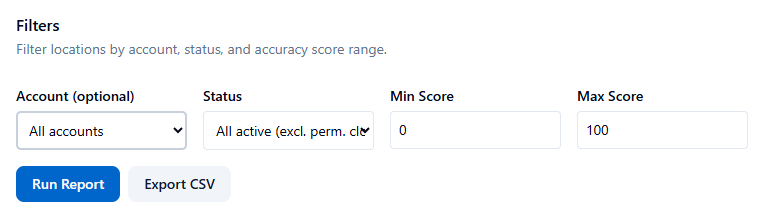
Navigate to Reports in the left sidebar, then select the Listing Accuracy tab.
To narrow down your audit, utilize the Filters Panel at the top of the dashboard:
-
Account (Optional): Select a specific Google Business account to audit a single client or brand, or leave it blank to view your entire portfolio.
-
Status: Filter by location operational status (All active, Open, or Temporarily Closed). Permanently closed locations are excluded by default to keep your data clean.
-
Min Score / Max Score: Enter a specific 0–100 range to isolate a specific performance band. (Pro-tip: Set Min to 0 and Max to 49 to instantly generate a critical triage list).
-
Click Run Report to generate the results.
Understanding the Dashboard Summary

Once the report runs, the top of the dashboard provides macro-level intelligence:
-
Summary Stats: A quick view of your Total Locations, your portfolio's Average Score, the count of locations in the critical range (Below 50), and the count of perfectly optimized locations (90+).
-
Top Missing Fields Card: This is a powerful diagnostic tool that highlights the most common incomplete fields across your filtered locations. It allows you to immediately spot systemic issues (e.g., "Hours missing at 45 locations") so you can prioritize bulk updates rather than hunting through individual profiles.
The Accuracy Table & Scoring
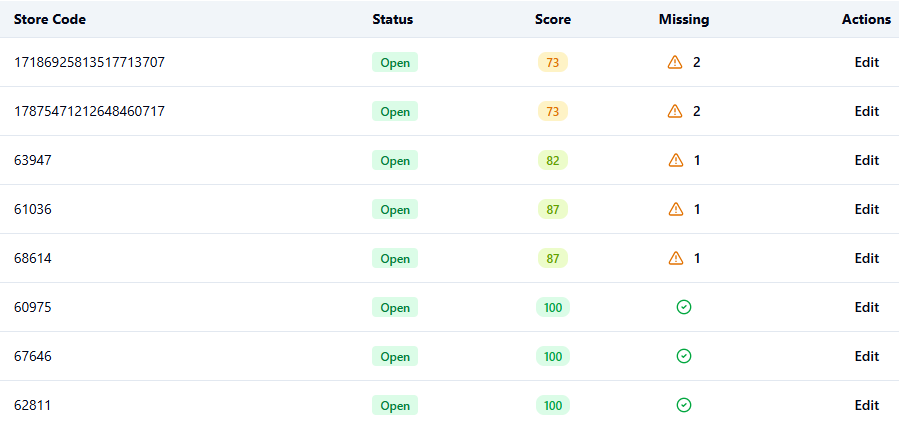
By default, the locations table is sorted "worst-first" (lowest scores at the top) so you can immediately see where your attention is needed.
Each row displays the location name, store code, operational status, and two critical action columns:
-
Score (Color Thresholds):
-
🟢 Green (90–100): Excellent. The profile is highly complete and well-optimized.
-
🟡 Lime (75–89): Good. Only minor, non-critical fields are missing.
-
🟠 Amber (50–74): Needs Attention. Important fields are incomplete and negatively impacting search visibility.
-
🔴 Red (0–49): Critical. Multiple vital fields (like hours, website, or phone number) are missing.
-
-
Edit: Click this button to instantly open the location's detail page and update the profile data.
Workflows for Improving Scores
To efficiently clean up your portfolio's accuracy, follow this workflow:
-
Set your filters to Min Score 0 and Max Score 49 to isolate critical locations.
-
Click the Missing count on a row to see exactly which data points are causing the low score.
-
Click Edit to open the profile, fill in the missing information, and save.
-
Re-run the report after the data syncs to see your updated scores.
-
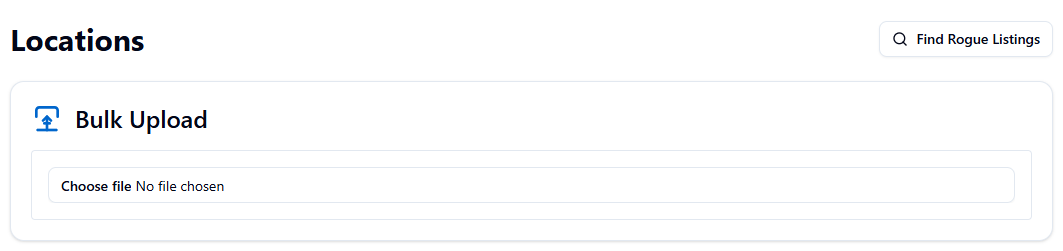
Scaling up: If you notice via the "Top Missing Fields" card that dozens of locations are missing the same data point, skip the manual editing and use the Bulk Upload feature in the Locations module to fix them all at once.
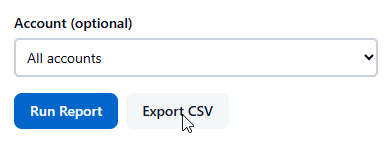
Exporting Your Data If you need to delegate the cleanup process, click Export CSV. This downloads the full table—including a semicolon-separated list of the exact missing fields for every location. You can email this spreadsheet directly to regional managers or clients so they can provide the missing information.
Best Practices & Quick Tasks
-
Set a Portfolio Benchmark: Aim to maintain an average accuracy score above 85 across your entire organization.
-
Prioritize the Red Zone: Always fix locations scoring below 50 first. Missing core data points like primary categories or operating hours will actively prevent a listing from appearing in the Google Local Pack.
Quick Tasks
- ✓✓ Navigate to the Listing Accuracy tab.
- ✓✓ Filter for critical scores (0-49).
- ✓✓ Review the Top Missing Fields card for systemic errors.
- ✓✓ Click the warning icon to view missing fields inline.
- ✓✓ Use the Edit button to instantly fix incomplete profiles.
- ✓✓ Export the CSV to delegate profile updates to location managers.
Keep learning
See the latest guides, experiments, and rollouts.