
Configuring Your Settings & Preferences
ProfilePilot Team | May 20, 2026 | 4 min read
The Settings module is your organizational control panel. It houses everything from your personal notification preferences to your team's role assignments and billing configurations. To access your configuration options, click Settings in the left-hand sidebar. (Note: ProfilePilot utilizes role-based access control. The tools visible to you depend entirely on your role. For example, "Bookkeeper" users will only see their Profile and Notification Preferences).
Your Profile & Access Details
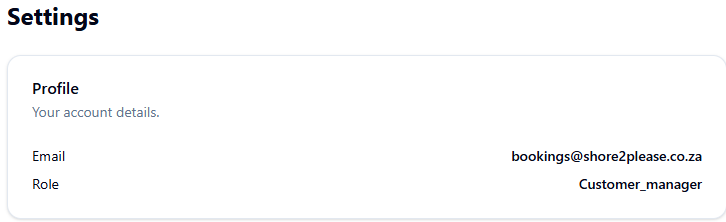
At the very top of the Settings page, your Profile Card displays your registered email address and your current system role. Always use this card to quickly verify that you are logged into the correct organization and have the expected access level for your required tasks.
Managing Platform Integrations
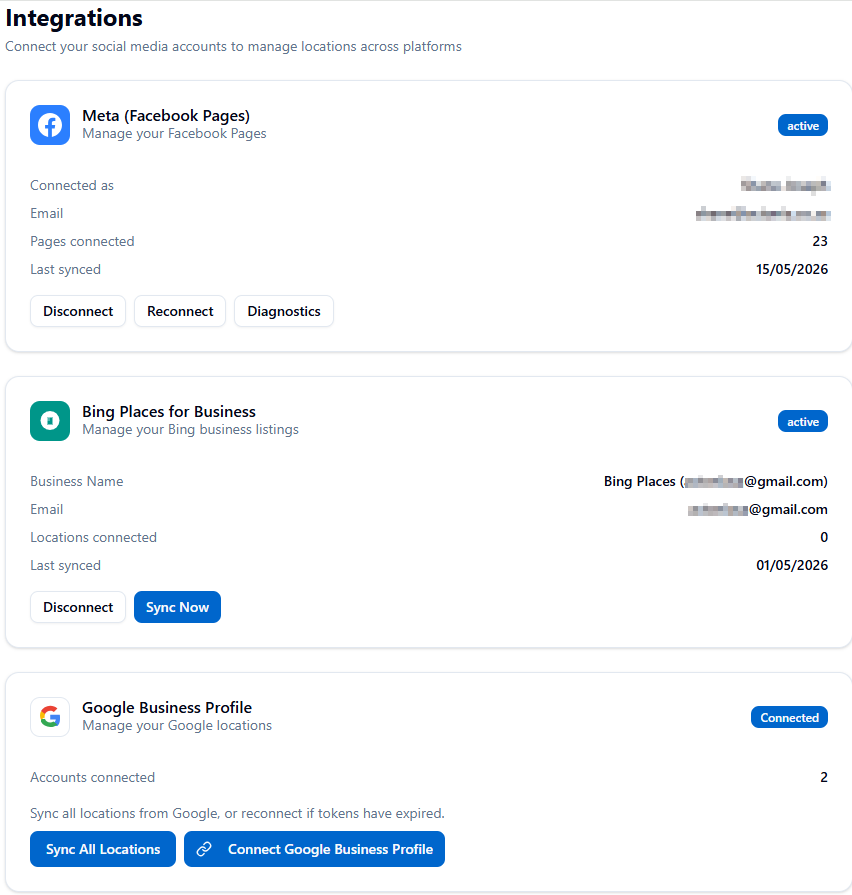
The Integrations section is where you connect ProfilePilot to your external platforms. Click Manage Integrations to access:
-
Google Business Profile: Securely authorize your GBP account via OAuth so the platform can automatically sync your locations, reviews, and search performance data.
-
Meta (Facebook Pages): Connect your Facebook and Instagram channels. This section includes a dedicated Diagnostics tab to help you troubleshoot expired authentication tokens.
-
Bing Places: Connect your Bing properties. If you make massive bulk updates to your locations, use the manual Sync Now button here to force-push the updates to Bing immediately.
Customizing Notification Preferences
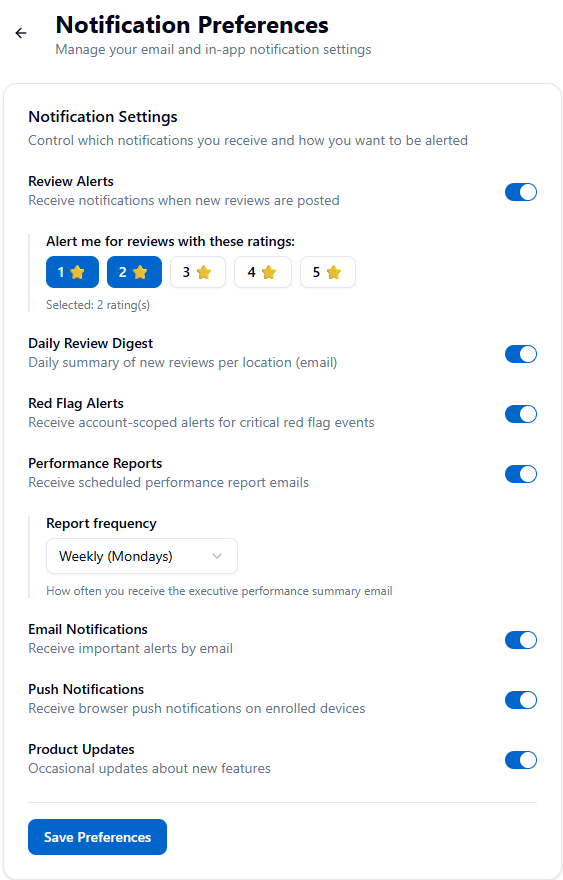
You have granular control over exactly what alerts you receive and how they are delivered. Navigate to Settings → Notifications to configure:
-
Review Alerts: Toggle alerts on or off, and set specific star-rating filters (e.g., only notify me for 1-star and 2-star reviews).
-
Daily Review Digest: Receive a consolidated daily email summarizing your new reviews (Requires both Review Alerts and Email Notifications to be enabled).
-
Red Flag Alerts: Get notified the moment a review triggers a critical keyword hazard or a review-bombing threshold.
-
Performance Reports: Schedule automated emails when your report data is ready, and dictate the frequency (Daily, Weekly, or Monthly).
-
Push Notifications: Opt into real-time browser push alerts. You only need to enroll your device once, and you can manage the permission directly from this page afterward.
Important Note for Multi-Location Brands: Scoped managers (Region or Store level) will strictly only receive notifications for the specific accounts assigned to their scope.
Team Onboarding (Bulk Invites)
If you have an Admin, Customer, or Campaign Specialist role, you can rapidly scale your team's access.
-
Click Open Bulk Invite to access the onboarding tool.
-
You can invite multiple team members simultaneously by pasting a list or uploading a CSV file.
-
During the invite process, you can immediately grant or update scoped assignments to restrict Region and Store Managers to their specific locations.
Public-Facing Tools & Branding
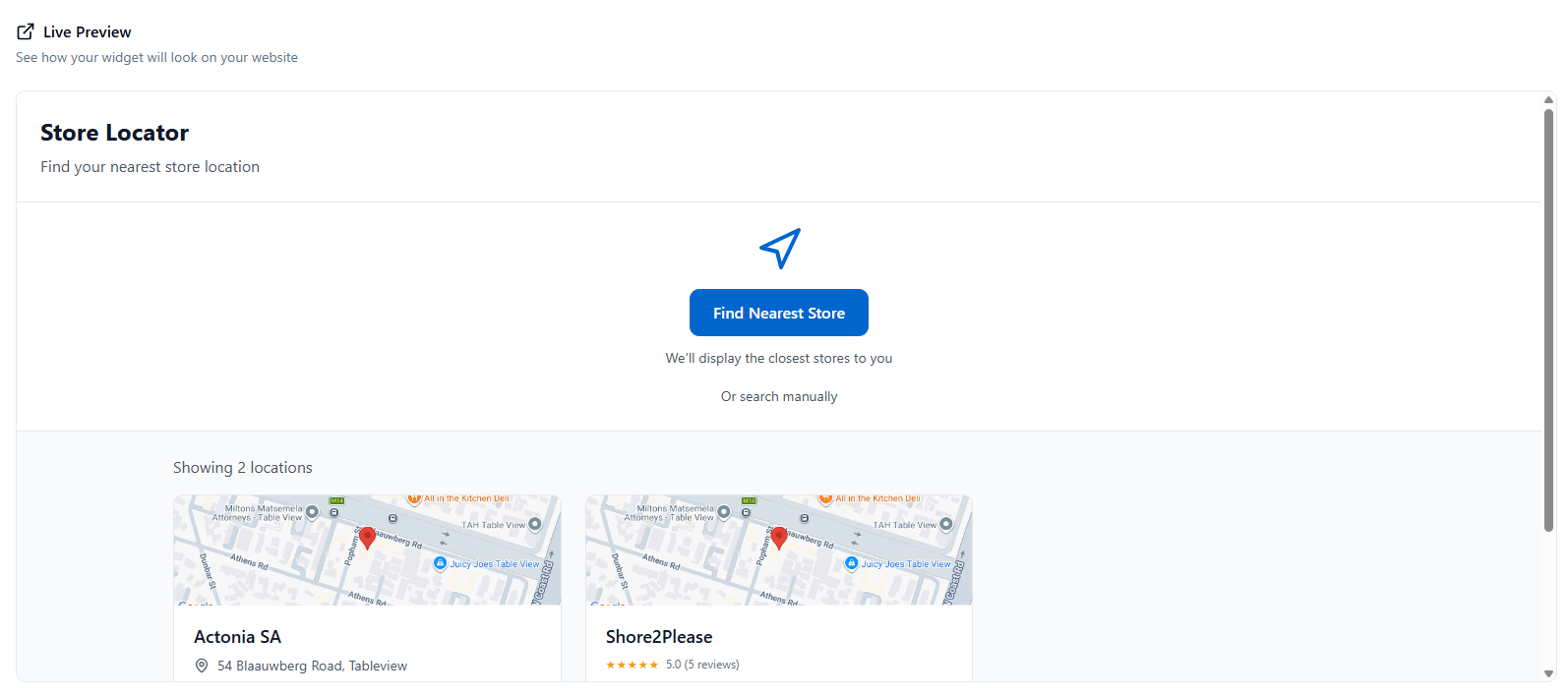
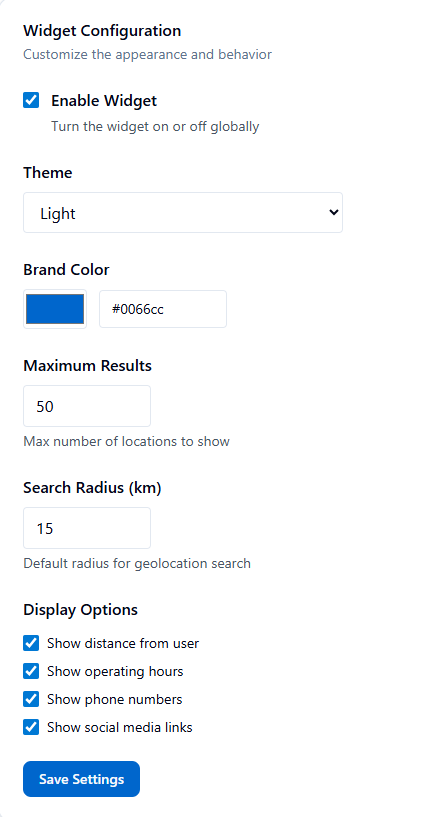 Store Locator Widget ProfilePilot allows you to build a branded store-finder that you can embed directly on your own website. The widget supports live address search and geolocation, displays a cover image for each location, and highlights top review snippets. Click Configure Widget to customize it and copy your HTML embed code.
Review Perks Branding Control exactly how your brand is presented on the public Review Perks landing page (the page unhappy customers see when you invite them to resolve an issue offline).
-
Click Configure Review Perks Branding.
-
Toggle your logo visibility on or off.
-
Choose between Brand Logo Mode (your overarching white-label domain logo) or Account Logo Mode (a specific custom URL tied to that specific GBP account).
-
Set the internal email recipients for Customer Satisfaction (CSAT) form submissions.
Usage, Subscription & Billing
Manage Subscription You can actively toggle your Paystack subscription between "Active" and "Paused" directly from the main Settings dashboard. Pausing your subscription stops automatic billing without deleting your historical data or account setup.
Usage & Billing Details Click View Usage & Billing to dive deeper into your active limits and optional features:
-
LocalSEO Grid Credits: Check your remaining credit balance for geo-grid ranking scans.
-
AI Usage: Track your Gemini AI generation usage across the platform (used for Help, Reputation replies, Posts, etc.).
-
Add-Ons: Enable or manage optional premium features like Developer API Access or Priority SLA Support directly from this panel.
Quick Tasks
- ✓✓ Navigate to Settings in the left sidebar.
- ✓✓ Connect your Google Business Profile and Meta pages via Integrations.
- ✓✓ Set your specific star-rating notification filters so your inbox isn't cluttered.
- ✓✓ Enroll your device for real-time browser Push Notifications.
- ✓✓ Build your Store Locator Widget and copy the embed code.
- ✓✓ Update your Review Perks Branding logo preferences.
- ✓✓ Check your LocalSEO Grid credit balance in Usage & Billing.
Keep learning
See the latest guides, experiments, and rollouts.