

Managing Reports & Exports
ProfilePilot Team | Jun 10, 2026 | 4 min read
Delivering clear, actionable data to your clients is the cornerstone of agency retention. The Reports module is a comprehensive analytics suite that provides everything from high-level AI narratives to granular, location-by-location spreadsheets. This guide provides an overview of the four core reporting dashboards and explains how to utilize the background job system to generate massive, combined PDF exports without freezing your browser.
The Four Core Reporting Dashboards
Navigate to the Reports module in the left-hand sidebar. The interface utilizes a unified tab bar, allowing you to seamlessly switch between four distinct report types. Note: As you switch between tabs, your chosen date and account filters automatically pass through to the next view.
-
Executive Report: A high-level KPI summary perfect for stakeholders. It features an AI-generated performance narrative, aggregated GBP metrics (impressions, engagement, leads), review health, transactional sentiment analysis, Q&A statuses, and your integrated Facebook/Instagram performance.
-
Locations Report: A granular, sortable table breaking down your Google Business Profile metrics (impressions, leads, reputation scores, and accuracy) on a strict per-location basis.
-
Reputation Report: A deep dive into your customer feedback. This view provides a sentiment breakdown (Positive/Neutral/Negative counts vs. previous periods), a reputation trend chart, unresolved negative review counts, and average response times.
-
Listing Accuracy Report: An operational dashboard ranking all your locations by their accuracy score (0–100). It highlights your top missing fields and provides an inline edit button to quickly fix incomplete profiles.
Individual CSV Exports
If your agency relies on custom spreadsheets or external data visualization tools (like Looker Studio or Tableau), you can export the raw data directly from the dashboards.
Every individual report page (Executive, Locations, Reputation, Listing Accuracy) features its own Export CSV button. The system automatically names your exported file with the date range, account name, and a timestamp to keep your downloads folder organized.
The Combined Report PDF System
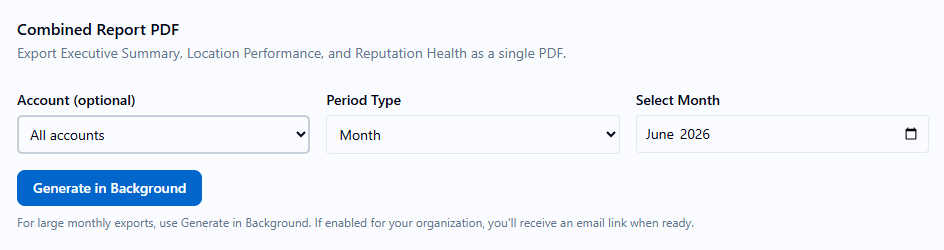
When you need to send a comprehensive end-of-month report to a client, you should use the Combined Report PDF. Located at the top of the main Reports index page, this tool merges the Executive Summary, Location Performance, and Reputation Health dashboards into a single, beautifully formatted PDF document.
How to Use Background Generation: Because compiling AI narratives and thousands of data points for multi-location brands requires heavy server processing, this export operates exclusively via a background job.
-
Select your Period Type (Days or Month).
-
Select your Account (or leave blank to aggregate everything).
-
Click Generate in Background.
The system queues the job on our servers, freeing up your browser so you can continue working in other parts of the platform.
Managing Background Jobs
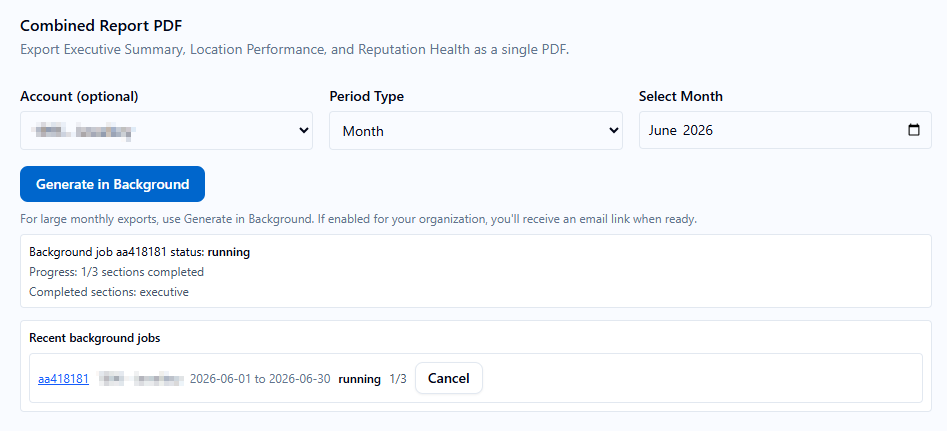
Below the generator, you will see your Recent Background Jobs list. This panel tracks up to 20 of your most recent export requests.
-
Live Tracking: The status moves from Queued → Running → Completed (or Partial/Failed). The progress indicator will show exactly how many of the 3 sections have finished compiling.
-
Persistence & Queuing: You can queue multiple jobs for different accounts at the exact same time without waiting for the first one to finish. If you accidentally close your browser tab, do not worry—the job history persists and will be waiting for you when you return.
-
Email Notifications: If enabled, the system will email you a direct download link the moment your PDF finishes generating.
Job Actions: From the Recent Background Jobs list, you can execute the following actions: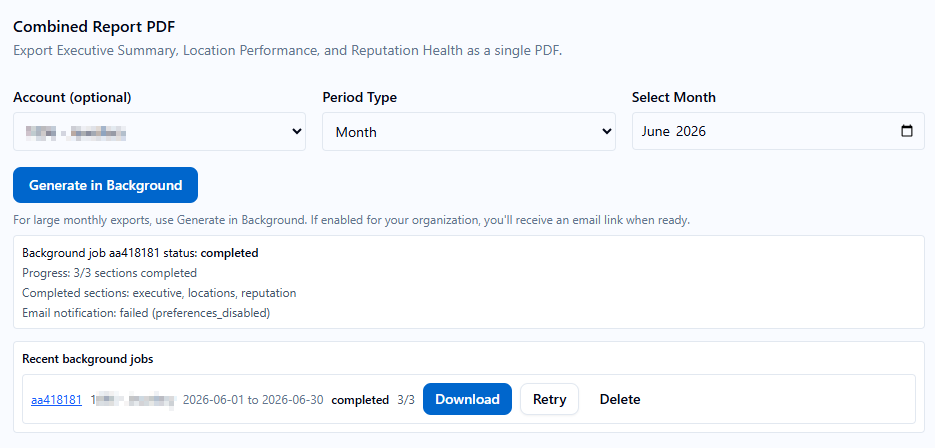
-
Download: Available as soon as a job status reads Completed or Partial. (A "Partial" report means one section timed out—usually due to massive location volume—but the PDF still successfully compiled the other sections).
-
Retry: If a job fails or only partially completes, click Retry. The system is smart enough to re-run from the last checkpoint rather than starting completely over.
-
Cancel: Instantly stop a queued or running job if you realize you selected the wrong date range.
-
Delete: Permanently remove a finished job from your history list to keep your dashboard clean.
Quick Tasks
- ✓✓ Navigate to Reports in the left sidebar.
- ✓✓ Switch between the Executive, Locations, Reputation, and Listing Accuracy tabs to view filtered data.
- ✓✓ Export individual reports as CSV files for raw data manipulation.
- ✓✓ Queue a Combined Report PDF in background mode for client delivery.
- ✓✓ Queue multiple separate background jobs for different client accounts simultaneously.
- ✓✓ Monitor job progress in the Recent Background Jobs list.
- ✓✓ Download your completed (or partial) combined PDF.
- ✓✓ Use the Retry action on any failed or partial background jobs.
Keep learning
See the latest guides, experiments, and rollouts.