
Connecting Social Location Pages
ProfilePilot Team | Jun 10, 2026 | 4 min read
Before your team can bulk-publish content or reply to customer comments, you must connect your social real estate to the platform. Social Location Pages refer to the specific Facebook Business Pages and Instagram Business Accounts that you link to ProfilePilot. These connected pages act as the engine for your social ecosystem, supplying all the data that populates your Social Inbox and serving as the destination targets for the Posts module.
Requirements Before You Start
Meta imposes strict security requirements for third-party software integrations. Before attempting to connect your accounts, ensure you meet the following criteria:
-
Facebook: You must have standard Admin privileges for the specific Facebook Page(s) you wish to connect.
-
Instagram: Your Instagram account must be set to a Business or Creator profile (personal profiles are not supported by Meta's API). Furthermore, the Instagram account must be actively linked to your Facebook Page within the native Meta Business Suite.
How to Connect Your Meta Accounts
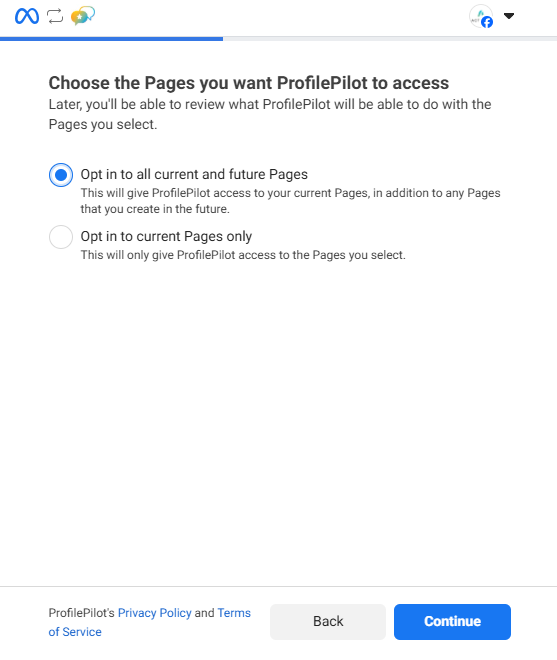
Connecting your accounts is a secure, one-time OAuth process. Instagram accounts linked to your Facebook Pages are picked up automatically through this single Meta connection.
-
Navigate to Settings → Integrations.
-
Locate the Meta (Facebook Pages) integration card.
-
Click Connect.
-
You will be securely redirected to Facebook to authorize ProfilePilot.
-
On the Facebook authorization screen, carefully select which specific Pages you want to share with the platform and grant the requested permissions.
-
Once authorized, you will be redirected back to Settings → Integrations, and your connected pages will populate in the list.
Viewing and Managing Connections
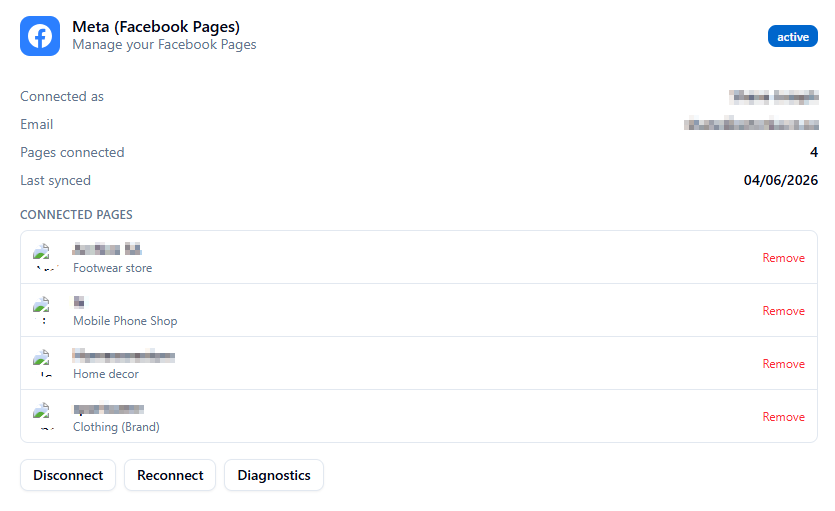
Once connected, your pages are listed under the Meta section in Integrations. This list displays each page's name, category, and current sync status.
What Actually Gets Synced? When you trigger a sync, ProfilePilot fetches the following data from these connected pages:
-
Posts: Your published content (text, images, links).
-
Comments: Top-level customer comments and nested replies.
-
Engagement & Insights: Likes, reactions, shares, impressions, reach, and engagement rates (as provided by the Meta API).
How to Disconnect: If you need to remove the integration entirely (e.g., offboarding a client), navigate back to the Meta card and click Disconnect. This securely deletes the stored authentication token. While your previously synced historical data (old posts and comments) will remain visible in ProfilePilot for your records, no new data will be fetched. You can also remove individual pages by clicking the remove option next to a specific page name.
Troubleshooting Common Issues
Meta connections can occasionally drop due to password changes or native security protocols. Here is how to fix common issues:
-
"No posts or comments found": ProfilePilot does not pull historical data the second you connect. Navigate to the Social Inbox and click the Sync button to initiate the first manual data fetch.
-
Missing Pages: If a page does not appear after connecting, verify that you actually checked the box for that specific page during the Facebook authorization step, and double-check that you hold Admin rights. You may need to click Reconnect to restart the authorization flow and reselect the missing pages.
-
Unable to Post Replies: If you receive an error when trying to reply to a comment, your Meta authentication token has likely expired. Navigate to Settings → Integrations and click Reconnect to instantly refresh your token and restore publishing permissions.
Privacy & Security Note
Your data security is paramount. ProfilePilot uses official API protocols, meaning:
-
The platform only accesses the specific business pages you explicitly authorize during the setup flow.
-
Your personal Facebook profile data, private messages, and personal feed are never accessed, read, or stored.
-
When you reply to a comment through the ProfilePilot dashboard, it posts natively to the platform appearing exactly as if you replied directly from your Business Page.
Quick Tasks
- ✓✓ Navigate to Settings → Integrations to manage your connections.
- ✓✓ Ensure your Instagram is set to a Business profile and linked to your Facebook page natively.
- ✓✓ Authorize ProfilePilot via the Meta consent screen.
- ✓✓ Navigate to the Social Inbox and click Sync to pull in your initial data.
- ✓✓ Use the Reconnect button if your token expires or you change your Facebook password.
Keep learning
See the latest guides, experiments, and rollouts.