

Managing Billing & Invoices
ProfilePilot Team | Jun 10, 2026 | 5 min read
The Billing module is your centralized hub for managing your platform subscription. Use this dashboard to view and download invoices, securely manage your payment methods, configure auto-pay, and record manual EFT transfers. Navigate to Billing in the left-hand sidebar to get started. (Note: At the top of the page, the Billing Overview card provides an immediate snapshot of your financial health, displaying your Current Balance Due, Unpaid Invoices count, and the active status of your payment methods).
Setting Up Your Billing Profile
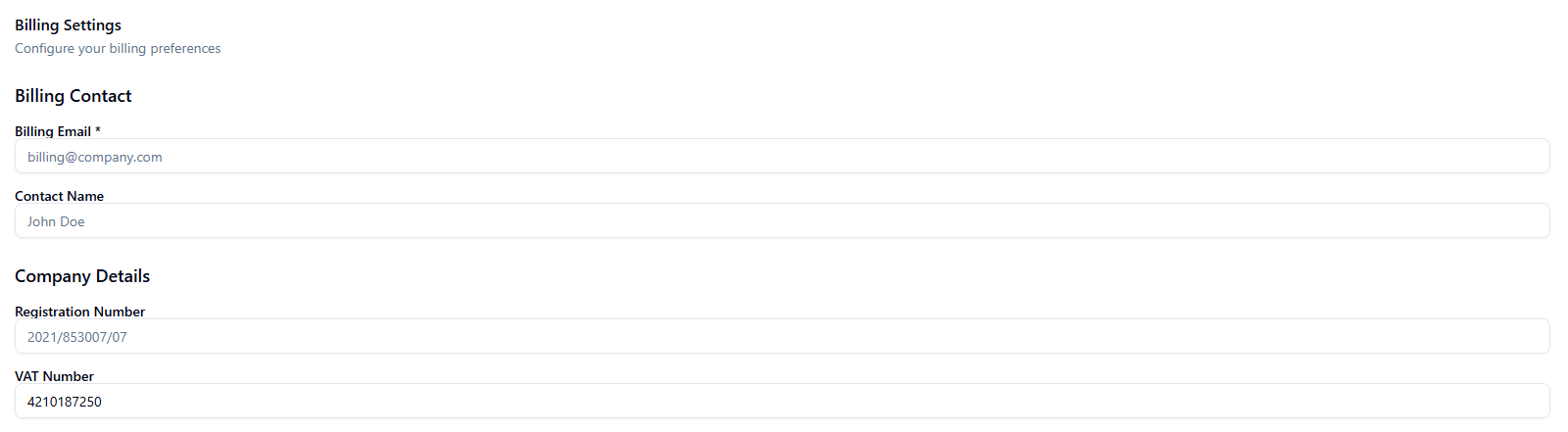
Before your first invoice is generated, you must configure your billing details to ensure your documents are legally compliant and routed to the correct department.
-
Navigate to Billing and scroll down to Billing Settings.
-
Under Billing Contact, enter:
-
Billing Email: The address where all invoices and payment reminders will be sent.
-
Contact Name: The individual responsible for account payables.
-
-
Under Company Details, enter your Registration Number and VAT Number (if applicable). These details will automatically render on every generated invoice.
-
Click Save Settings.
Adding a Payment Method
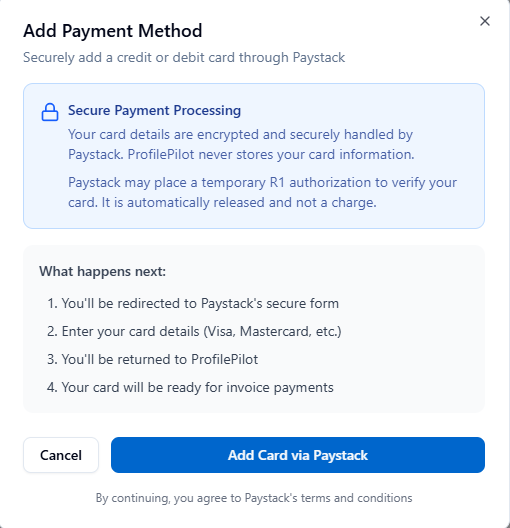
ProfilePilot utilizes Paystack to process card payments securely.
-
Scroll to the Payment Methods section.
-
Click Add Payment Method.
-
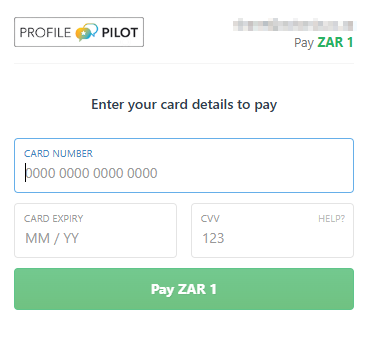
You will be redirected to a secure Paystack hosted form. Enter your card details.
-
Note: Paystack may place a temporary R1 authorization hold on the card to verify it. This is released automatically and is not an actual charge.
-
-
Upon completion, you will be routed back to the dashboard, and your card will appear in the payment methods list.
-
If you have multiple cards on file, click the star icon next to a card to designate it as your primary (default) payment method.
Enabling Auto-Pay (Recommended)

To ensure uninterrupted service and eliminate manual administrative work every billing cycle, we highly recommend enabling Auto-Pay.
-
Navigate to Billing Settings → Subscription Settings.
-
Toggle Auto-Pay Enabled to the ON position.
-
Click Save Settings.
The system will now automatically charge your primary card on the invoice due date. No manual action is required.
Reviewing Invoices & Recording Payments
Your complete financial history is located in the Invoices & Transactions table. This table tracks your Invoice Number, Issue Date, Due Date, Number of Billed Locations, Total Amount (R), and current Status (Paid, Partially Paid, or Unpaid).
You can click Download PDF next to any invoice for your accounting records.
How to Record a Manual Payment: If you do not use Auto-Pay and prefer to pay via Electronic Funds Transfer (EFT), you must manually reconcile the invoice in the system once the funds clear.
-
Locate the Unpaid invoice in the table.
-
Click Record Payment.
-
In the dialog box, enter the specific payment details:
-
Payment Amount (You can enter an amount lower than the total to log a Partial Payment).
-
Payment Date
-
Payment Method (e.g., Bank Transfer).
-
Notes (e.g., Enter your EFT reference number here).
-
-
Click Record Payment. The invoice status will update immediately.
How Your Bill is Calculated
ProfilePilot uses a straightforward, location-based billing model.
-
You are billed strictly for every active location synced to your account during the billing cycle.
-
Formula: Total Locations × Your Price Per Location.
Billing Cycles:
-
Monthly Plans: Invoiced at the end of each month.
-
Annual Plans (≤25 locations): Invoiced once upfront, covering 12 months at a discounted rate.
-
Annual Plans (>25 locations): Invoiced monthly, but actively locked into the discounted annual rate. (You can verify your current plan on the Pricing page).
Roles & Access Permissions
-
Admin: Full access. Admins can edit the price per location, adjust payment handling settings, and modify payment terms.
-
Customer / Customer Manager: Can view the billing dashboard, download invoices, add payment methods, and update the billing contact. The price per location is strictly read-only.
-
Bookkeeper: Sees a tailored, location-by-location billing summary view rather than the standard organization-wide dashboard.
Frequently Asked Questions
"Will I be billed for closed location?" Unlike other providers who bill you for all locations regardless of the location status, ProfilePilot only bills you for active and temporary closed locations.
"Can I get an annual discount?" Yes. You can switch to an annual plan on the Pricing page. Organizations managing 25 locations or fewer are invoiced once upfront for the full year.
"My invoice amount looks wrong." First, check your total location count in the Locations module. Every active location synced to the platform is billed. If the location count does not align with your expectations, contact support and provide your specific Invoice Number.
Changing or Upgrading Your Plan
Your active subscription plan dictates both your per-location billing rate and your access to specific platform features.
How to Review Your Current Plan:
-
Navigate to Billing → Settings → Billing Settings. Your current tier is displayed directly within the Pricing section.
-
To compare all available feature tiers side-by-side, visit the ProfilePilot Pricing Page.
How to Switch Plans: To upgrade or adjust your current subscription tier, please contact our support team.
-
Monthly Plans: Approved plan changes will be applied automatically at the start of your next billing cycle.
-
Annual Plans: Because annual plans lock in a significantly discounted rate, they cannot be modified or downgraded mid-cycle.
Quick Tasks
- ✓✓ Navigate to Billing in the left sidebar.
- ✓✓ Update your VAT Number and Company Details in Billing Settings.
- ✓✓ Add your credit/debit card securely via the Paystack integration.
- ✓✓ Star your preferred card to set it as the primary method.
- ✓✓ Enable Auto-Pay to automate your monthly billing.
- ✓✓ Download past invoices as PDFs for your accounting software.
- ✓✓ Manually record EFT payments to clear unpaid invoices.
Keep learning
See the latest guides, experiments, and rollouts.