
Managing Red Flag Review Alerts
ProfilePilot Team | May 19, 2026 | 6 min read
Not all negative reviews are created equal. While a standard 3-star review requires good customer service, a 1-star review mentioning food poisoning, harassment, or a lawsuit requires immediate crisis management.
Understanding Alert Levels
Not all negative reviews are created equal. While a standard 3-star review requires good customer service, a 1-star review mentioning food poisoning, harassment, or a lawsuit requires immediate crisis management.
The Red Flag Alert System automatically monitors all incoming reviews across your connected platforms. Using a combination of intent-based keyword matching, AI sentiment analysis, and pattern detection, the system instantly identifies and escalates reviews that pose operational, legal, or reputational risks to your brand.
1. Understanding Alert Levels
The system categorizes concerning reviews into specific triage levels based on urgency, allowing your team to prioritize their response strategy.
-
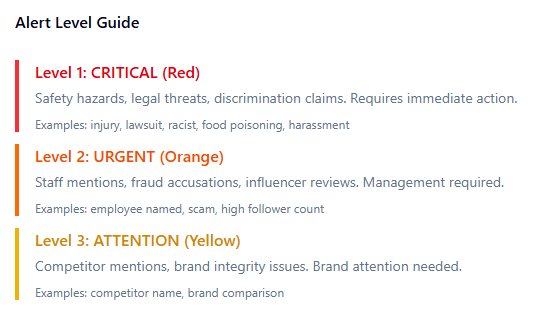
Level 1: CRITICAL (Red) – Immediate Action Required
-
Triggers: Safety and health hazards (injury, food poisoning, pests), illegal activity (theft, harassment, police involvement), legal threats (lawsuits, fraud accusations), or active Review Bombing.
-
Target Response Time: 1 to 4 hours. These issues carry severe legal liability and can escalate rapidly on social media.
-
-
Level 2: WARNING / URGENT (Orange) – Management Required
-
Triggers: Personal attacks identifying specific staff members by name or description, discrimination claims, extreme service friction (e.g., local frustration phrasing like "yoh" or "eish"), and negative reviews from high-follower Influencers.
-
Target Response Time: 4 to 24 hours. These require HR consultation and careful, strategic responses.
-
-
Level 3: ATTENTION (Yellow) – Brand Attention Needed
-
Triggers: Direct competitor mentions ("Go to [Competitor] instead"), comparative statements damaging to your brand positioning, or severe brand name misspellings.
-
Target Response Time: 24 to 48 hours. These issues directly impact brand integrity and local search positioning.
-
-
Insight (Green) – Positive Opportunity
-
Triggers: Positive local sentiment cues (e.g., "lekker," "friendly staff"). The system highlights these to suggest generating a rapid, AI-drafted thank-you response without escalating them as a threat.
-
How the System Detects Threats
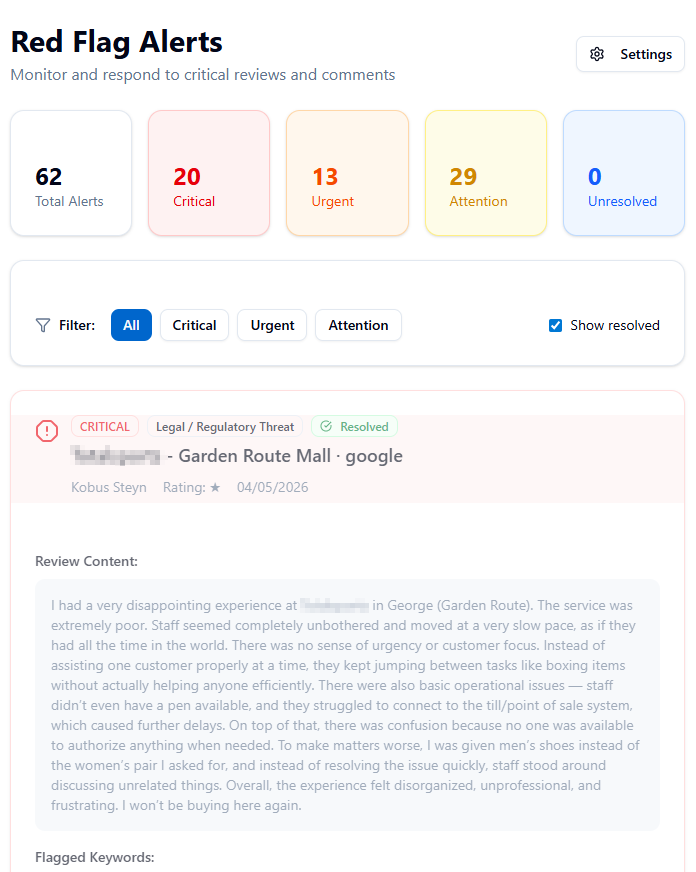
The Red Flag system does not just look for bad words; it looks for context. It utilizes three core detection layers:
-
Intent-First Keyword Monitoring: The system maintains a localized database of flagged terms. It suppresses low-signal, generic complaints while prioritizing severe legal, fraud, and safety signals.
-
AI Sentiment Analysis: For Critical and Urgent alerts, the system utilizes AI to analyze the full context of the review. It provides your team with an overall severity assessment, an explanation of exactly why the review is concerning, and a recommended response approach.
-
Pattern Detection: * Review Bombing: The system tracks the velocity of incoming negative feedback. If a location receives a sudden spike of 1-star reviews within a short window, a Critical alert is triggered—even if the individual reviews do not contain specific trigger words.
-
Influencer Detection: The system scans reviewer metadata. If a negative review is left by an account exceeding your configured follower threshold, it is automatically escalated.
-
Alert Workflows & Notifications
Alerts are generated in real-time within seconds of a review being posted.
Notification Channels To ensure critical issues are never missed, alerts are routed through multiple channels based on user preferences:
-
In-App Dashboard: A centralized hub to view summary statistics, filter alerts, and track resolution statuses.
-
Email & Push Alerts: Immediate notifications are sent to in-scope users who have Red Flag alerts enabled in their personal notification settings.
-
CRM / Ticketing Integrations: Organizations using external systems (like Zendesk or HubSpot) can configure webhooks to automatically push Red Flag alerts directly into their existing ticketing workflows.
The Resolution Workflow (Important) Posting a public reply to a review does not automatically resolve a Red Flag alert. Alert resolution and public replying are tracked as two separate actions. A Red Flag remains open in your dashboard until a manager explicitly clicks "Resolve," ensuring the underlying operational issue (e.g., speaking to the employee involved) is completed.
Note: The system respects Account Sync Scopes. Users will only receive notifications and see dashboard alerts for the specific locations and brands they are authorized to manage.
Configuration & Getting Started
Administrators can tailor the Red Flag system to match their organization's specific needs.
-
Navigate to Dashboard > Red Flags > Settings and toggle the monitoring system on.
-
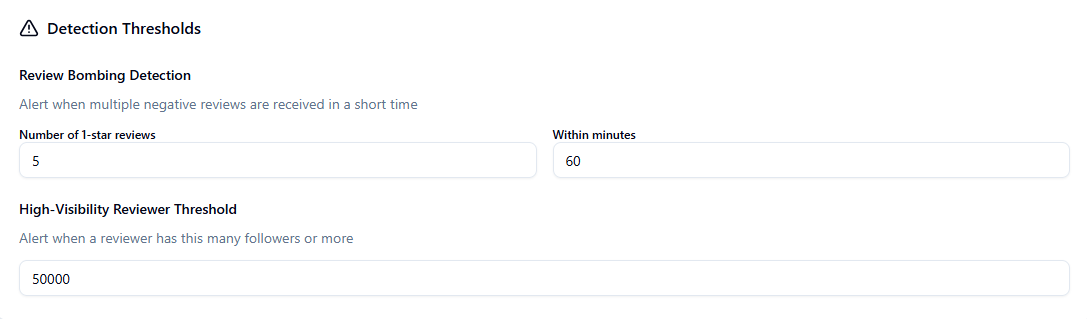 Set Thresholds: Define your Review Bombing parameters (e.g., trigger an alert if 5 negative reviews arrive within 60 minutes) and set your Influencer follower count minimum (default is 50,000).
 -
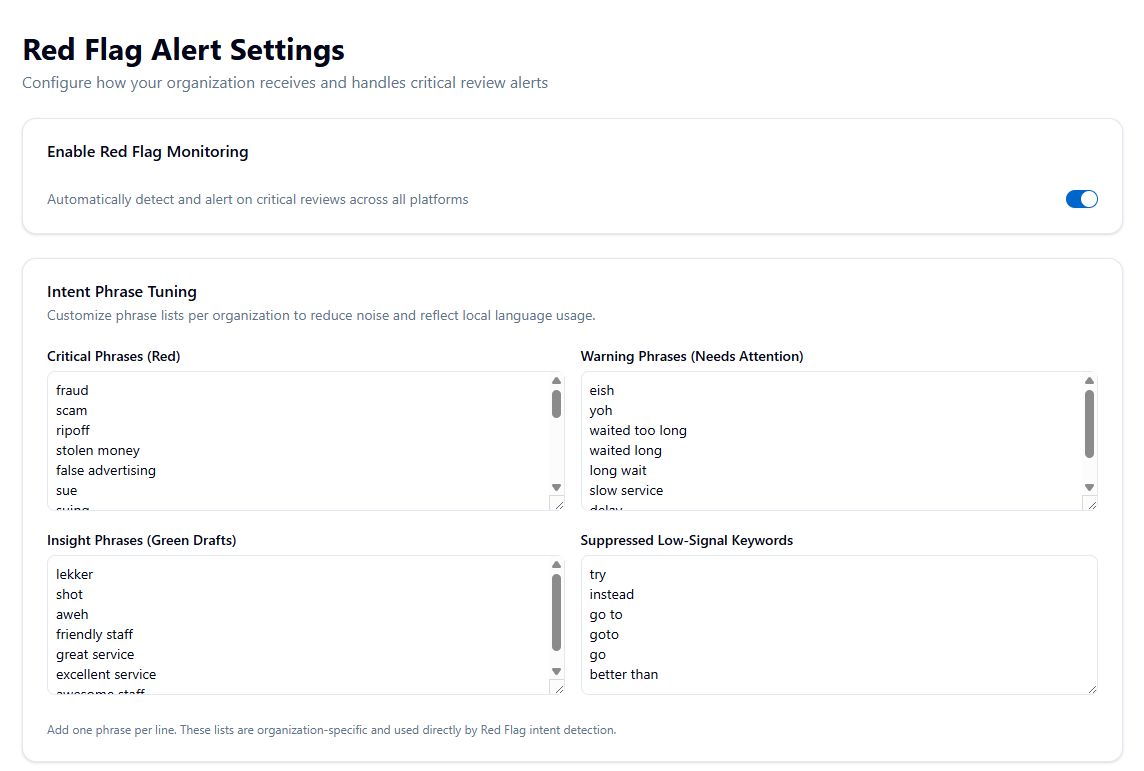 Tune Intent Phrases: Add organization-specific keywords to monitor (like internal product names or local competitor names). You can also tune phrase lists to account for local dialects or industry-specific jargon to reduce false positives.
 -
 Enable Notifications: Instruct your management team to navigate to Settings > Notifications to enable Email and/or Push alerts for Red Flags.
 -
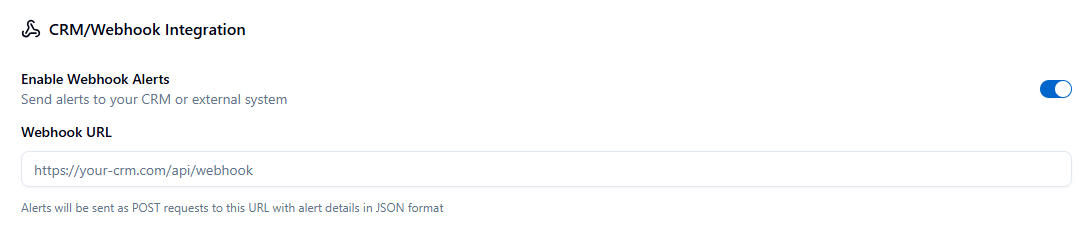 (Optional) Configure your webhook URL if you intend to push alerts to external CRM or ticketing software.
Best Practices for Crisis Management
-
Establish an Internal Protocol: Do not wait for a Critical alert to happen. Document exactly who needs to be notified (HR, Legal, Operations) for each specific alert level.
-
Coordinate with HR & Legal: For alerts involving specific staff mentions, coordinate with Human Resources before responding publicly. For legal threats or fraud claims, consult legal counsel before publishing a reply.
-
Document Your Resolutions: Use the internal resolution notes field in the dashboard to track exactly how each alert was handled internally for future auditing.
-
Review Patterns Weekly: Look at your resolved alerts every week. If a specific location is generating recurring Safety or Wait Time alerts, you have an operational problem that needs to be addressed beyond just replying to the reviews.
Frequently Asked Questions
Are all negative reviews flagged as Red Flags? No. Standard 1-star or 2-star reviews complaining about general service will simply appear in your normal Reputation dashboard. Only reviews containing specific risk indicators, or those part of a review bombing pattern, are escalated as Red Flags.
What if we receive too many false positives? You can easily refine the system. Navigate to Settings and adjust your detection thresholds, increase your review bombing window, or suppress specific keywords that are commonly used harmlessly in your specific industry.
What happens if I miss an alert notification? Redundancy is built in. Even if you miss an email or push notification, the alert will remain permanently open and highly visible in your Red Flag Dashboard until a manager manually reviews and resolves it.
Do alerts work for all review platforms? Yes. The Red Flag system monitors Google Business Profile, Meta (Facebook), and all other review platforms connected to your ProfilePilot account.
Quick Tasks
- ✓View all red flag alerts
- ✓Filter alerts by level (Critical/Urgent/Attention)
- ✓Mark an alert as resolved
- ✓Configure email notification recipients
- ✓Set up webhook for CRM integration
- ✓Adjust review bombing thresholds
- ✓Add custom keywords to monitor
- ✓Test webhook integration
- ✓View alert level guide
- ✓Export alerts via API
Keep learning
See the latest guides, experiments, and rollouts.