
Creating and Using Response Templates
ProfilePilot Team | May 19, 2026 | 4 min read
Managing customer reviews at scale requires both speed and personalization. The Response Templates feature allows you to create reusable, pre-written replies that automatically populate with specific customer and location details. This drastically reduces your team's reply time while ensuring consistent, on-brand messaging across all of your managed locations.
Accessing Template Management
Because templates dictate the public voice of your brand or your clients' brands, they are globally managed.
-
Navigate to Admin > Response Templates.
-
Note: Only users with Administrator permissions can create, edit, or delete templates.
Creating a New Template
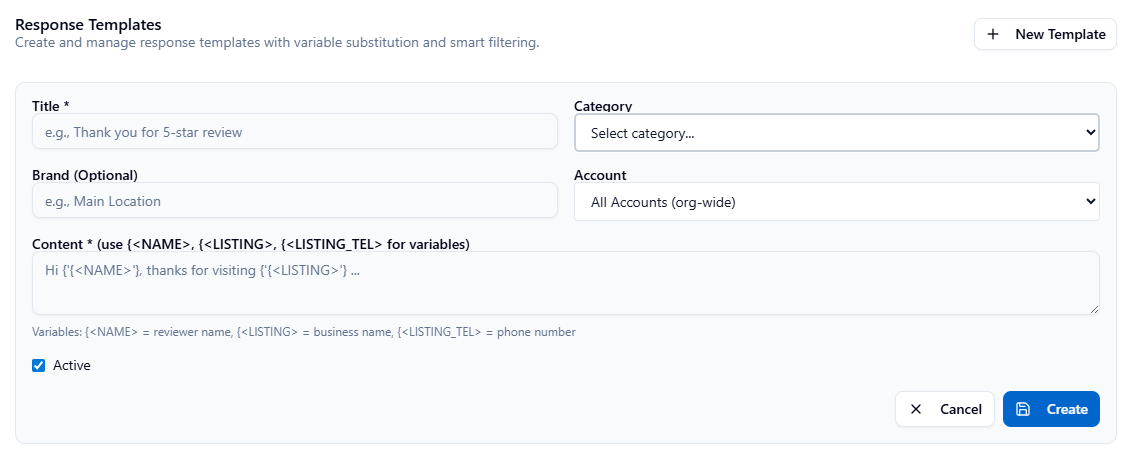
To build a new template, click the "New Template" button and configure the following fields:
-
Title: Give your template a clear, descriptive internal name so your team knows exactly when to use it (e.g., "5-Star Review - Thank You", "1-Star Review - Service Escalation", or "Follow-up Clarification").
-
Category (Optional): Apply a grouping label to organize your templates by type, sentiment, or audience segment (e.g., "Positive", "Negative", "General Inquiry").
-
Content: Draft the actual response message that will be published publicly. To make the template dynamic, utilize Variable Substitution (see below).
Dynamic Variable Substitution
You should never post identical, robotic replies to your customers. ProfilePilot uses smart variable tags to instantly personalize your templates. When a team member selects a template, the system automatically replaces the following variables with the actual data associated with that specific review:
-
<NAME>– Injects the reviewer's first name (e.g., "Hi John,"). -
<LISTING>– Injects your specific business name or location name (e.g., "Thanks for visiting ABC Restaurant Downtown!"). -
<LISTING_TEL>– Injects the specific phone number for that location (e.g., "Please call our manager directly at (555) 123-4567").
Smart Filtering & Organization
If you manage multiple brands or locations under one agency umbrella, you don't want your team accidentally using a "Plumbing" template for a "Restaurant" client.
-
Brand Filtering: You can assign an optional Brand name to a template. This ensures the template is filtered and only appears as an option when replying to reviews for that specific brand.
-
Active/Inactive Toggle: If a template is tied to a seasonal promotion (e.g., "Thanks for visiting during our Holiday Sale"), you can toggle it to Inactive rather than deleting it. This temporarily hides it from the reply interface until you need it again next year.
Using Templates in Your Workflow
-
Navigate to the Reputation module.
-
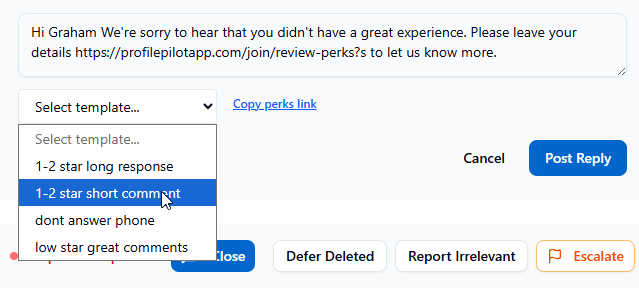
Locate a review and click Respond.
-
A dropdown menu will display your available templates, smartly filtered to match the brand and context.
-
Click a template. The reply field will instantly populate with your pre-written text and automatically substitute the
<NAME>and<LISTING>variables. -
Review and Edit: You can freely edit, add context, or tweak the populated text before hitting publish, ensuring the final response sounds perfectly natural.
Best Practices for Scaling Responses
-
Build the Core Five: Start by creating 3 to 5 core templates that cover standard sentiment levels: a 5-star generic thanks, a 5-star specific (mentioning their great feedback), a 4-star "how can we earn the 5th star," a 3-star neutral acknowledgment, and a 1-to-2-star escalation apology.
-
Always Use Variables: Make it a strict operational rule to include the
<NAME>variable in every template. Personalized reviews are favored by Google's algorithm and read much better to prospective customers. -
Maintain the Brand Voice: Keep your templates conversational, empathetic, and aligned with your brand's tone. Avoid overly corporate or defensive language.
-
Audit and Refine: Periodically review your team's reply history. Identify which templates are being heavily edited before posting, and refine the base template to better fit those real-world scenarios.
Quick Tasks
- ✓Create a 5-star review response template
- ✓Create a 1-2 star review response template
- ✓Add variables to personalize responses
- ✓Edit an existing template
- ✓Deactivate a template temporarily
- ✓Use a template when replying to a review
- ✓Test variable substitution with actual review data
Keep learning
See the latest guides, experiments, and rollouts.