

Smart Inbox (Email Tickets & Escalations)
ProfilePilot Team | May 15, 2026 | 4 min read
Receive inbound emails as tickets, escalate reviews, manage status, and troubleshoot blank messages or missing deliveries.
Create Tickets
Smart Inbox creates an email ticket automatically when a message arrives at your org routing address (for example slug@inbox.profilepilotapp.com).
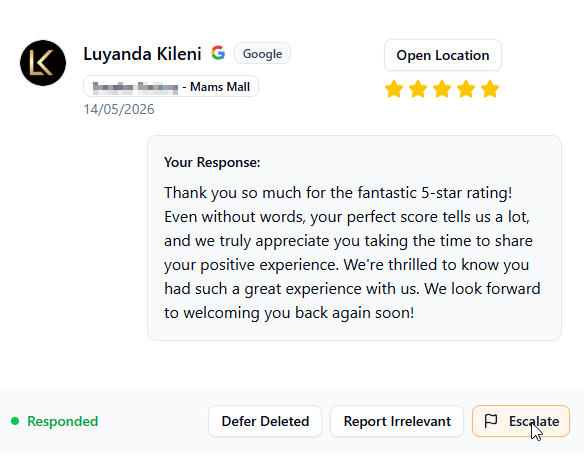
Agency staff can also escalate any review from the Reputation page directly into Smart Inbox: click the orange "Escalate" button on a review card, add an optional agent note, and confirm — the ticket appears instantly in Smart Inbox marked as "⚑ escalated".
Escalated tickets
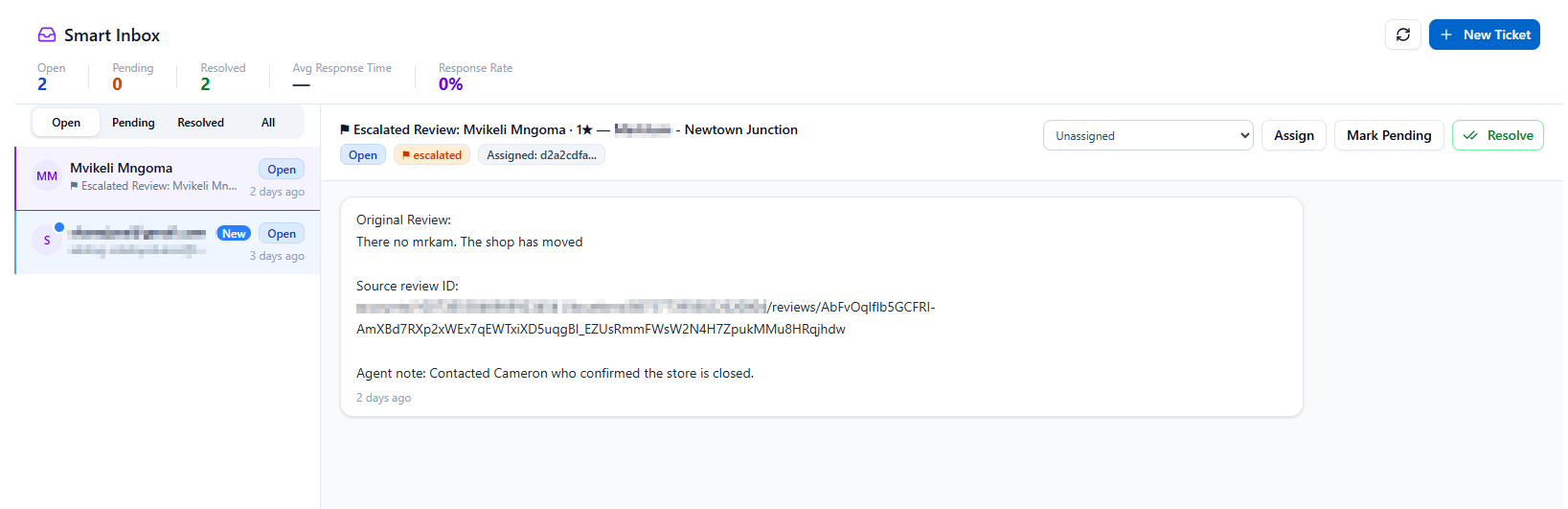
Escalated tickets capture the reviewer name, star rating, business name, review snippet, and any agent note in the first message so the team has full context without switching screens.
Manual assignment

Manual assignment is available in the Smart Inbox thread header: select a customer assignee and click Assign to route ownership clearly.
For escalated review/comment tickets, assignee options are filtered by account context for scoped region/store managers, so only relevant customer-side managers appear.
Assigning a ticket
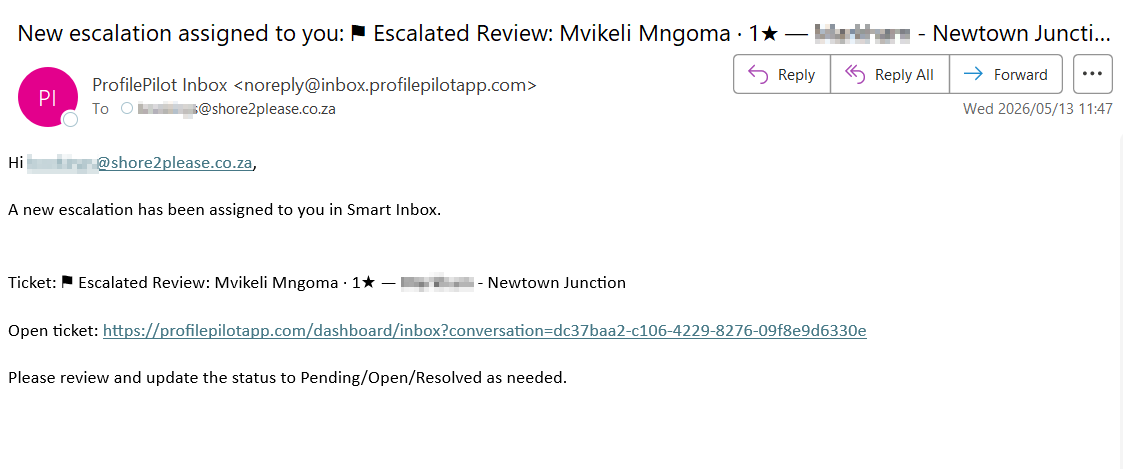
Assigning a ticket sends an email notification to the selected assignee with ticket details and a direct link to Smart Inbox.
Once a review is escalated the review card shows an "Escalated to Inbox" badge and the Escalate button is disabled to prevent duplicate tickets.
Inbound delivery depends on three things: Resend inbound route active, webhook URL correctly set to /api/webhooks/resend/inbound, and organization inbox_slug matching the recipient slug.
The webhook accepts both Resend inbound event shapes (nested email.received and flattened email object payloads).
Inbound webhook processing is idempotent by both Resend email_id and email Message-ID, so retries or overlapping deploy windows should not create duplicate messages in the same thread.
Replies advance the stored thread Message-ID, which improves In-Reply-To matching for longer email chains instead of relying only on the first root email.
Staff replies reuse the latest known thread pointer for follow-up customer replies, which is compatible with the current Resend SDK version used by the app.
If a customer replies to a pending or resolved ticket, the conversation is automatically reopened to Open status.
Email subjects are normalized when creating new conversations and during threading so "RE: fixed" and "FWD: fixed" are recognized as matching "fixed" and thread correctly into the same conversation thread.
Manual status controls are available in the thread header: Mark Pending, Resolve, and Reopen (for pending/resolved tickets).
Sidebar notifications

Sidebar shows a pulsing Smart Inbox indicator when new open tickets arrive so admins can notice inbound email activity without staying on the Inbox page.
Opening Smart Inbox clears the pulse by marking the latest open-ticket count as seen.
New inbound conversations now send a one-time automatic acknowledgement email to the sender confirming their enquiry was received and will be attended to shortly.
Follow-up replies in an existing thread do not send another acknowledgement, preventing duplicate courtesy emails.
If a provider does not send plain text body content, Smart Inbox derives readable text from HTML so inbound bubbles are not blank.
Older tickets created during the earlier blank-body bug may still contain the stored placeholder text. New inbound emails should now keep their real content, and duplicate deliveries should be ignored.
Quick Tasks
- ✓Confirm recipient uses your org slug (slug@inbox.profilepilotapp.com)
- ✓Set Resend webhook URL to your active environment domain + /api/webhooks/resend/inbound
- ✓Send a test email and verify it appears in Open tickets
- ✓Confirm the Smart Inbox sidebar entry pulses when a new ticket arrives
- ✓Open Smart Inbox and confirm the pulse clears
- ✓Use Reopen to move pending or resolved tickets back to Open
- ✓If delivery fails, check Vercel logs for resend/inbound diagnostics
Keep learning
See the latest guides, experiments, and rollouts.