
How to Read Insights Paid Media Like a Specialist
ProfilePilot Team | Aug 18, 2026 | 6 min read
A step-by-step walkthrough of campaign filters, status logic, totals, and practical checks to quickly find what is working and what to fix.
Step 1: Filter by platform and live status
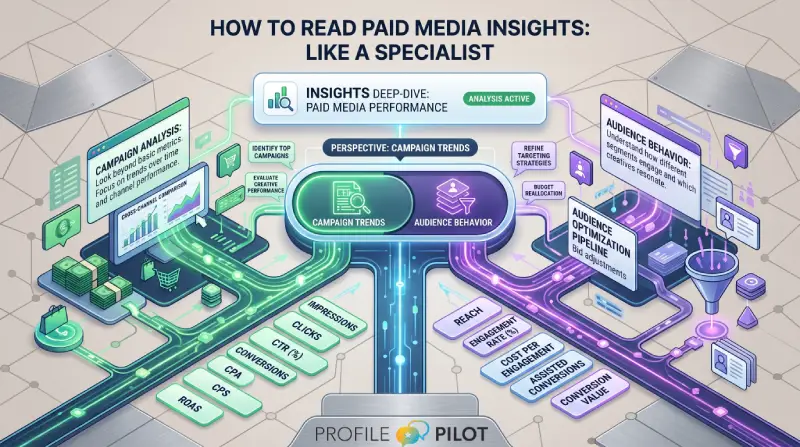
Start on Insights → Paid Media and filter to the platform you want.
Use Active to see live campaigns across Google and Meta (status labels differ by platform, but active logic is unified in the UI).
Step 2: Read totals before evaluating individual campaigns
Use the totals row to check account-level performance first:
- Spend
- Impressions and clicks
- Conversions
- Conversion value
- ROAS / CPA
Totals use full filtered data, not only the visible page in pagination.
Step 3: Interpret Meta columns correctly
For Meta campaigns:
- Reach and Store interactions depend on campaign objective and available action types
- Conversion value and ROAS can be blank for awareness/engagement campaigns
- CPA appears when results/conversions are non-zero
Do not treat blank value/ROAS on awareness objectives as a sync failure.
Step 4: Use date range and sync controls for diagnostics
If metrics look stale:
- Confirm date range is correct
- Run sync for the platform
- Recheck totals before drilling into rows
Always troubleshoot from totals down to campaign rows, not the other way around.
Keep learning
See the latest guides, experiments, and rollouts.