
How to Configure Insights for Lead Gen vs Ecommerce
ProfilePilot Team | Aug 18, 2026 | 7 min read
Learn how to set the correct Insights mode, map conversions properly, and make KPI cards reflect leads or transactions accurately.
Step 1: Set the correct site mode
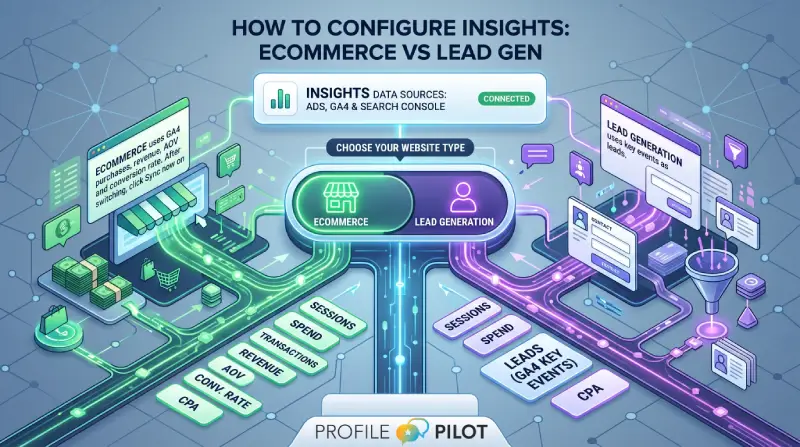
Open Settings → Integrations → Insights and select the correct mode:
- Lead gen for enquiry/lead businesses
- Ecommerce for transaction/revenue businesses
This switch changes how Insights interprets conversion KPIs across Overview and Channel Comparison.
Step 2: Map your primary conversion events
Open the Analytics/Insights settings and choose only the events that represent real business outcomes.
For lead-gen, avoid counting utility events (for example chatbot interactions) as primary leads unless they are true lead outcomes.
Clean event mapping prevents inflated conversion totals.
Step 3: Run a fresh sync after changing mode or mappings
After changing site mode or conversion mappings, run Sync now for GA4.
Then recheck:
- Overview KPI cards
- Channel Comparison totals
- Revenue/transaction metrics (ecommerce mode)
Without a fresh sync, the UI can still reflect older ingestion assumptions.
Step 4: Sanity-check your numbers
Use one known date range (for example last month) and compare:
- GA4 conversions/transactions
- Google Ads conversions
- Insights totals
Expect minor differences by attribution model, but large discrepancies usually indicate event mapping or connector scope issues.
Keep learning
See the latest guides, experiments, and rollouts.